Custom Properties are used to control aspects of machines that users are able to provision. For example, memory and CPU are required information that are necessary for users to deploy a VM from a blueprint. Custom properties can be assigned to a blueprint or reservation to control how memory and CPU should be configured.
Custom properties are really powerful attributes that can vastly change how a machine behaves. I like to think of custom properties as the “Windows Registry” of vRealize Automation. Changing one property can have a huge effect on deployments.
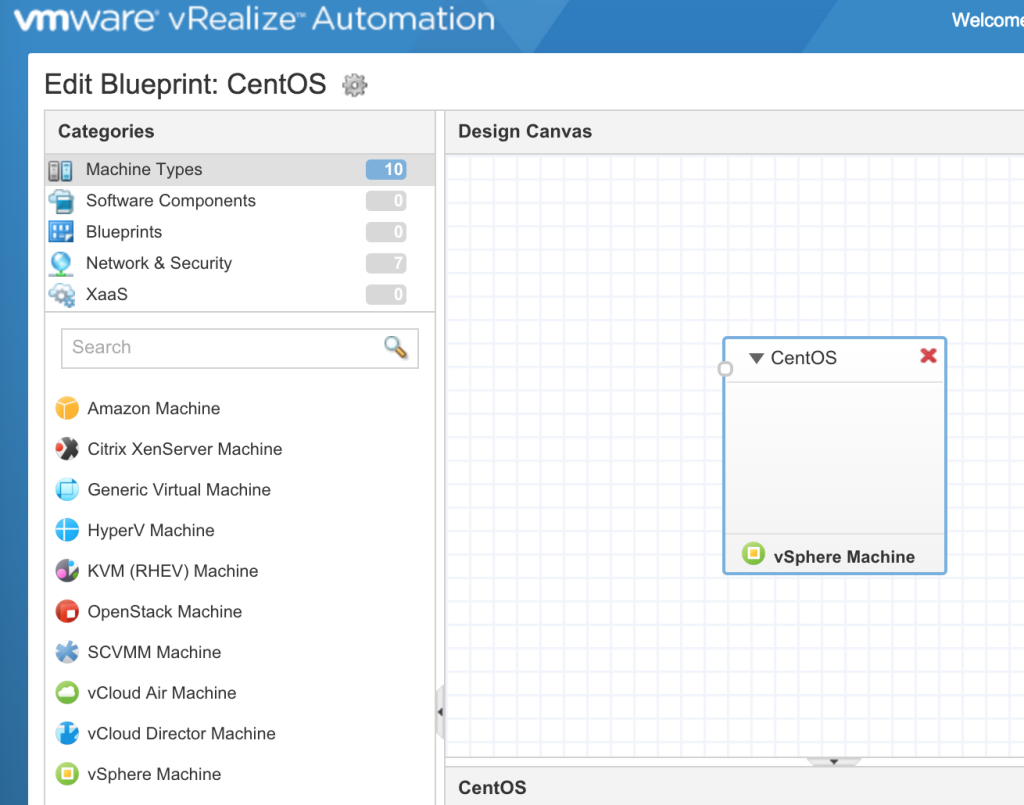
To add a custom property to a blueprint, open the blueprint in the “Design” tab. Select the blueprint we’re working with and then click the vSphere Machine that is on the “Design Canvas”.
Now click on the properties tab of the machine object and click the “Custom Properties” tab. Here we can click the “New” button to add a new property.
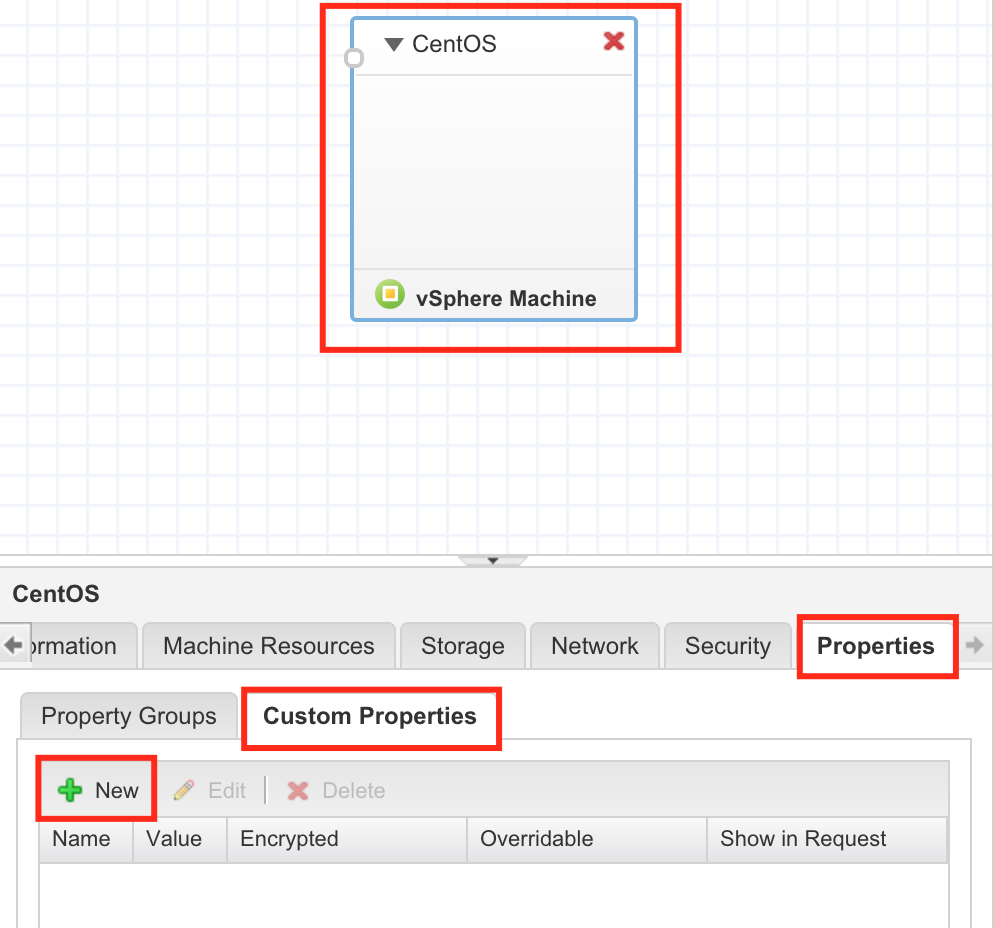
From here, we need to enter a name and a value. What you enter here will really vary but a list of the custom properties can be found at the official VMware vRealize Automation Documentation. I do want to call out a few custom properties that you may find very valuable, especially if you’re just getting started.
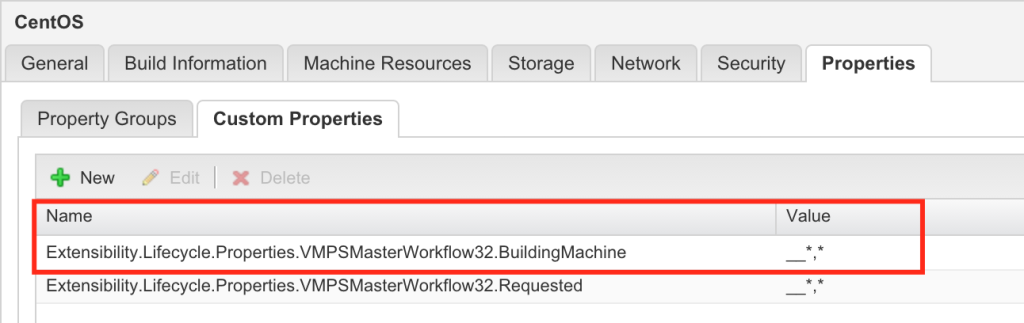
Not all of the virtual machine properties are passed to vRealize Orchestrator in vRA7 unless you add the following custom property to the blueprint. Extensibility.Lifecycle.Properties.VMPSMasterWorkflow32.[LIFECYCLESTATE]. Where Lifecycle state is the name of the lifecycle that the machine would be in.
For instance Extensibility.Lifecycle.Properties.VMPSMasterWorkflow32.BuildingMachine with a Value of __*,* will pass all hidden properties as well as all of the normal properties. If you didn’t figure it out, the __* (Double underscore, asterisk) denotes a hidden property. You can see the actual property that I’ve added to my blueprint in the screenshot below. Notice that I’ve added two custom properties so that all the attributes are passed during both the BuildingMachine and Requested Lifecycle states.
When the custom properties below are passed over to vRealize Orchestrator we can list all the properties of the machine to do custom workflows. The screenshot below shows a list of properties that are passed over by default.
[2016-01-05 11:42:40.016] [I] BlueprintName: CentOS [2016-01-05 11:42:40.021] [I] ComponentId: CentOS [2016-01-05 11:42:40.022] [I] ComponentTypeId: Infrastructure.CatalogItem.Machine.Virtual.vSphere [2016-01-05 11:42:40.022] [I] EndpointId: 12250e26-da94-4c0a-b19d-5c5d7c73ebcb [2016-01-05 11:42:40.023] [I] RequestId: 16d179cc-a1ce-4261-831e-cd54ed009c3f [2016-01-05 11:42:40.024] [I] VirtualMachineEvent: null [2016-01-05 11:42:40.025] [I] WorkflowNextState: null [2016-01-05 11:42:40.028] [I] State: VMPSMasterWorkflow32.Requested [2016-01-05 11:42:40.029] [I] Phase: PRE [2016-01-05 11:42:40.030] [I] Event: null [2016-01-05 11:42:40.030] [I] ID: 4e87d827-50b4-407a-b9b7-955db9d644af [2016-01-05 11:42:40.033] [I] Name: HollowAdmin0003 [2016-01-05 11:42:40.034] [I] ExternalReference: null [2016-01-05 11:42:40.034] [I] Owner: [email protected] [2016-01-05 11:42:40.035] [I] Type: 0 [2016-01-05 11:42:40.036] [I] Properties: HashMap:1409151584 [2016-01-05 11:42:40.040] [I] vRA VM Properties : Cafe.Shim.VirtualMachine.TotalStorageSize : 16 Extensibility.Lifecycle.Properties.VMPSMasterWorkflow32.BuildingMachine : __*,* Extensibility.Lifecycle.Properties.VMPSMasterWorkflow32.Requested : __*,* VirtualMachine.Admin.TotalDiskUsage : 16384 VirtualMachine.CPU.Count : 1 VirtualMachine.Cafe.Blueprint.Component.Cluster.Index : 0 VirtualMachine.Cafe.Blueprint.Component.Id : CentOS VirtualMachine.Cafe.Blueprint.Component.TypeId : Infrastructure.CatalogItem.Machine.Virtual.vSphere VirtualMachine.Cafe.Blueprint.Id : CentOS VirtualMachine.Cafe.Blueprint.Name : CentOS VirtualMachine.Disk0.IsClone : true VirtualMachine.Disk0.Label : Hard disk 1 VirtualMachine.Disk0.Size : 16 VirtualMachine.Disk0.Storage : Synology02 VirtualMachine.Memory.Size : 2048 VirtualMachine.Network0.Name : VMs-VLAN VirtualMachine.Storage.Name : Synology02 __Cafe.Request.BlueprintType : 1 __Cafe.Request.VM.HostnamePrefix : Use group default __Cafe.Root.Request.Id : 276b4854-db3b-4cca-9a06-fc070c1081d1 __Clone_Type : CloneWorkflow __InterfaceType : vSphere __Legacy.Workflow.ImpersonatingUser : __Legacy.Workflow.User : [email protected] __VirtualMachine.Allocation.InitialMachineState : SubmittingRequest __VirtualMachine.ProvisioningWorkflowName : CloneWorkflow __api.request.callback.service.id : 6da9b261-33ce-495e-b91a-4f50c202635d __api.request.id : 16d179cc-a1ce-4261-831e-cd54ed009c3f __clonefrom : CentOS-Template __clonefromid : 18ff68d0-5190-4b42-99b3-641145378a3a __clonespec : CentOS __request_reason : __trace_id : FhP8UgRD _number_of_instances : 1
You can see from that list, there are a bunch of properties assigned to a VM by default and you can makeup your own properties if you’d like. Maybe you want a variable passed named “DR Server” and the value is either Yes or No. vRealize Orchestrator could read that property, if you add it to your blueprint, and you can make a decision based on that. In another case, maybe you want to make a decision about what datastore in which the vm should be placed, and you use vRO to update that property so the machine is deployed in a different datastore.
There are three more things you need to add to a custom property besides “Name” and “Value.” These are Encrypted, Overridable and Show in Request. Lets take a look at these.
- Encrypted - Removes clear text from the vRealize Automation GUI. Hint: use this for passwords.
- Overridable - Allows the user to change the property during provisioning.
- Show in Request - Prompts the user to enter this property during provisioning.
Summary
Custom Properties are a must have piece of your vRealize Automation instance if you plan to do any serious customization or decision making. These properties allow you to add variables and make the solution fit within your organizational structure. Learn them, love them and get used to dealing with them.